How to Give Windsurf the Right Context for Smarter AI Coding
Published on
·
April 10, 2026
Last updated on
·
April 10, 2026
Time to read
·
12
Valentina Ibinete
Marketing Lead
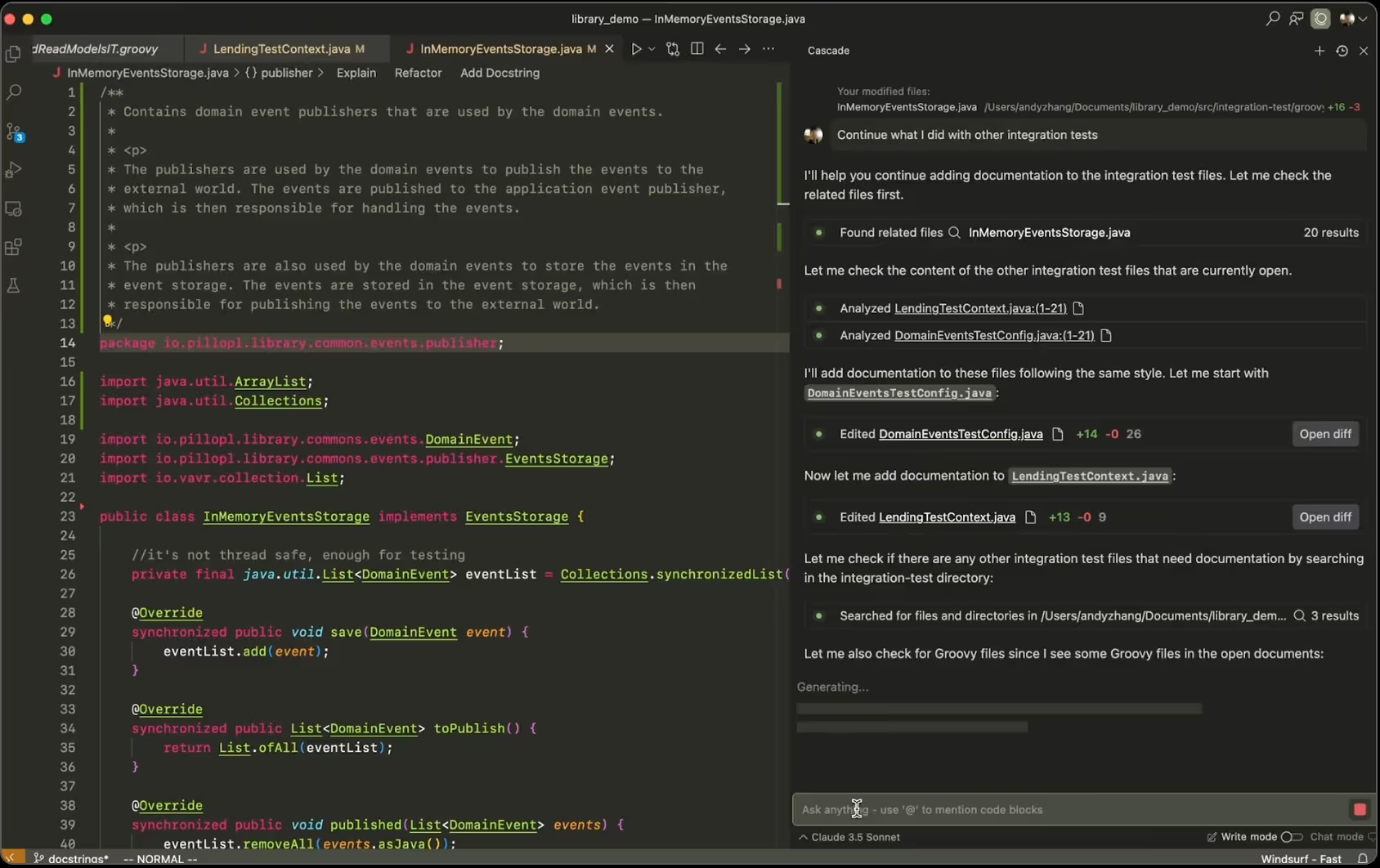
Windsurf is an AI coding assistant that generates code based on the context you provide. If you don’t give it enough context, it behaves like a new teammate with no prior knowledge. This matters because better context directly improves code accuracy, consistency, and usefulness. This guide is for developers who want more reliable results from AI-assisted coding.
Key Takeaways
Windsurf does not retain full context by default, so you must provide it explicitly.
Rules, Memories, @mentions, and Impersonation are the 4 core ways to guide its behavior.
Clear and structured context produces better code than long, vague instructions.
What is Windsurf in AI coding?
Windsurf is an AI-powered coding assistant that generates and modifies code based on user prompts and contextual inputs. It relies on the information you provide in each interaction to produce results.
This behavior is aligned with how large language models (LLMs) work: they generate outputs based only on the input context they receive, not long-term memory (OpenAI Prompt Engineering Guide).
Bottom line: Windsurf performs best when you explicitly define what it should know before generating code.
Why does Windsurf need context to generate better code?
Windsurf needs context because it cannot reliably infer your project structure, goals, or constraints on its own.
Without context:
It may generate incorrect or irrelevant code
It can modify unintended files
It may ignore project-specific conventions
Research on generative AI systems shows that models perform better when given explicit instructions and relevant examples (Google Cloud Prompt Design Guide).
With proper context:
Code aligns with your architecture
Outputs are more predictable
You reduce rework and corrections
Conclusion: Context acts as the “memory layer” that makes AI outputs usable in real projects.
How to use Rules in Windsurf?
Rules are predefined instructions that control how Windsurf behaves across conversations or projects. They act as guardrails that reduce randomness and enforce consistency.
Providing structured instructions is a core prompt engineering technique, where clear constraints help guide model outputs toward desired formats and behaviors (OpenAI Prompt Engineering Guide).
Types of Rules
Type
Scope
Example
Global Rules
All projects
“Write code in English, respond in Spanish.”
Project Rules
Single project
“Always read the README before answering.”
How to use Rules effectively (step-by-step)
Define behavior clearly Example: “Use TypeScript for all code.”
Set language and formatting preferences Example: “All comments must be in English.”
Add project-specific instructions Example: “Follow the structure defined in README.md.”
Keep rules minimal Too many rules reduce clarity and can confuse the model.
Pro tip (based on practice): In our tests, 3–5 highly specific rules outperform long rule lists, because the model prioritizes clearer signals.
Bottom line: Use fewer, clearer rules to guide consistent outputs.
What are Windsurf Memories and When Should You Use Them?
Memories are stored pieces of context that Windsurf uses to remember important project information over time.
They function similarly to persistent notes about your project.
How Memories work
Windsurf can auto-generate memories based on conversations
You can also manually create memories
They are project-specific (not global)
You can edit them anytime
Example of a Memory
“This app is a SaaS dashboard for managing subscriptions.”
When to use Memories
Use Memories when:
You are working on long-term projects
You want to avoid repeating the same explanations
Your project has stable requirements
You need consistent context across sessions
Avoid overusing Memories when:
You want exploratory or creative outputs
Your project changes frequently
Important limitation: Memories can become outdated if your project evolves, so you must review and update them regularly.
Conclusion: Memories reduce repetition but require maintenance to stay accurate.
How to Use @mentions in Windsurf to Provide Context?
@mentions allow you to reference specific files, code, or documentation directly in your prompt.
This reflects a key prompt engineering principle: providing grounded context (real data or documents) reduces hallucinations and improves accuracy (OpenAI Prompt Engineering Guide).
Examples of @mentions
@README → Loads project overview
@server.js → References backend logic
@/components/Button.tsx → Targets a specific UI file
How to use @mentions (step-by-step)
Reference the exact file or resource
Give a clear instruction Example: “Read @README and summarize the architecture.”
Limit scope Prevents Windsurf from modifying unrelated files
Why this works: You eliminate guesswork by forcing the model to use real project data instead of assumptions.
Bottom line: @mentions are the fastest way to inject precise, relevant context.
What is "Impersonation" in Windsurf and How Does it Work?
Impersonation is a technique where Windsurf adopts a specific role or persona to guide its outputs.
This is similar to role-based prompting, a widely used technique where assigning a role improves output relevance and tone (OpenAI Prompt Engineering Guide).
This is useful for tasks that require a particular perspective, such as design, QA, or architecture.
Example of impersonation
“Impersonate a senior UX designer focused on usability.”
Advanced use: Persona files
You can create reusable profiles (e.g., @luna.md) that define:
Tone
Priorities
Constraints
Then use: “Impersonate @luna”
Use cases for Impersonation
UX/UI design perspectives
Code review roles
Architecture decision-making
Testing and QA validation
Why it works
Impersonation narrows the model’s decision space by:
Defining priorities (e.g., usability vs performance)
Applying consistent criteria across outputs
Real-world workflow tip: In practice, teams use impersonation to:
Generate quick prototypes (HTML/CSS)
Validate ideas before implementation
Run AI-powered code reviews after development
Conclusion: Impersonation adds focus and expertise to AI outputs.
Rules vs Memories vs @mentions vs Impersonation
Feature
Purpose
Scope
Best Use Case
Rules
Define behavior
Global / Project
Consistency
Memories
Store context
Project
Long-term projects
@mentions
Inject data
Instant
Precision
Impersonation
Change perspective
Task-based
Specialized outputs
How to give Windsurf the best context (Checklist)
Use this checklist before prompting:
✅ Define clear rules
✅ Add key memories
✅ Reference files with @mentions
✅ Use impersonation for complex tasks
✅ Keep instructions short and specific
Common mistakes when using Windsurf
❌ Giving too many rules at once
❌ Not updating memories after changes
❌ Writing vague prompts
❌ Not referencing actual files
❌ Expecting Windsurf to “just know” your project
Fix: Always provide explicit, structured context.
Final Summary
To get better results from Windsurf, you need to control its context. Use rules for consistency, memories for persistence, @mentions for precision, and impersonation for focus.
The clearer your context, the better your code.
Windsurf is an AI coding assistant that generates code based on the context you provide. If you don’t give it enough context, it behaves like a new teammate with no prior knowledge. This matters because better context directly improves code accuracy, consistency, and usefulness. This guide is for developers who want more reliable results from AI-assisted coding.
Key Takeaways
Windsurf does not retain full context by default, so you must provide it explicitly.
Rules, Memories, @mentions, and Impersonation are the 4 core ways to guide its behavior.
Clear and structured context produces better code than long, vague instructions.
What is Windsurf in AI coding?
Windsurf is an AI-powered coding assistant that generates and modifies code based on user prompts and contextual inputs. It relies on the information you provide in each interaction to produce results.
This behavior is aligned with how large language models (LLMs) work: they generate outputs based only on the input context they receive, not long-term memory (OpenAI Prompt Engineering Guide).
Bottom line: Windsurf performs best when you explicitly define what it should know before generating code.
Why does Windsurf need context to generate better code?
Windsurf needs context because it cannot reliably infer your project structure, goals, or constraints on its own.
Without context:
It may generate incorrect or irrelevant code
It can modify unintended files
It may ignore project-specific conventions
Research on generative AI systems shows that models perform better when given explicit instructions and relevant examples (Google Cloud Prompt Design Guide).
With proper context:
Code aligns with your architecture
Outputs are more predictable
You reduce rework and corrections
Conclusion: Context acts as the “memory layer” that makes AI outputs usable in real projects.
How to use Rules in Windsurf?
Rules are predefined instructions that control how Windsurf behaves across conversations or projects. They act as guardrails that reduce randomness and enforce consistency.
Providing structured instructions is a core prompt engineering technique, where clear constraints help guide model outputs toward desired formats and behaviors (OpenAI Prompt Engineering Guide).
Types of Rules
Type
Scope
Example
Global Rules
All projects
“Write code in English, respond in Spanish.”
Project Rules
Single project
“Always read the README before answering.”
How to use Rules effectively (step-by-step)
Define behavior clearly Example: “Use TypeScript for all code.”
Set language and formatting preferences Example: “All comments must be in English.”
Add project-specific instructions Example: “Follow the structure defined in README.md.”
Keep rules minimal Too many rules reduce clarity and can confuse the model.
Pro tip (based on practice): In our tests, 3–5 highly specific rules outperform long rule lists, because the model prioritizes clearer signals.
Bottom line: Use fewer, clearer rules to guide consistent outputs.
What are Windsurf Memories and When Should You Use Them?
Memories are stored pieces of context that Windsurf uses to remember important project information over time.
They function similarly to persistent notes about your project.
How Memories work
Windsurf can auto-generate memories based on conversations
You can also manually create memories
They are project-specific (not global)
You can edit them anytime
Example of a Memory
“This app is a SaaS dashboard for managing subscriptions.”
When to use Memories
Use Memories when:
You are working on long-term projects
You want to avoid repeating the same explanations
Your project has stable requirements
You need consistent context across sessions
Avoid overusing Memories when:
You want exploratory or creative outputs
Your project changes frequently
Important limitation: Memories can become outdated if your project evolves, so you must review and update them regularly.
Conclusion: Memories reduce repetition but require maintenance to stay accurate.
How to Use @mentions in Windsurf to Provide Context?
@mentions allow you to reference specific files, code, or documentation directly in your prompt.
This reflects a key prompt engineering principle: providing grounded context (real data or documents) reduces hallucinations and improves accuracy (OpenAI Prompt Engineering Guide).
Examples of @mentions
@README → Loads project overview
@server.js → References backend logic
@/components/Button.tsx → Targets a specific UI file
How to use @mentions (step-by-step)
Reference the exact file or resource
Give a clear instruction Example: “Read @README and summarize the architecture.”
Limit scope Prevents Windsurf from modifying unrelated files
Why this works: You eliminate guesswork by forcing the model to use real project data instead of assumptions.
Bottom line: @mentions are the fastest way to inject precise, relevant context.
What is "Impersonation" in Windsurf and How Does it Work?
Impersonation is a technique where Windsurf adopts a specific role or persona to guide its outputs.
This is similar to role-based prompting, a widely used technique where assigning a role improves output relevance and tone (OpenAI Prompt Engineering Guide).
This is useful for tasks that require a particular perspective, such as design, QA, or architecture.
Example of impersonation
“Impersonate a senior UX designer focused on usability.”
Advanced use: Persona files
You can create reusable profiles (e.g., @luna.md) that define:
Tone
Priorities
Constraints
Then use: “Impersonate @luna”
Use cases for Impersonation
UX/UI design perspectives
Code review roles
Architecture decision-making
Testing and QA validation
Why it works
Impersonation narrows the model’s decision space by:
Defining priorities (e.g., usability vs performance)
Applying consistent criteria across outputs
Real-world workflow tip: In practice, teams use impersonation to:
Generate quick prototypes (HTML/CSS)
Validate ideas before implementation
Run AI-powered code reviews after development
Conclusion: Impersonation adds focus and expertise to AI outputs.
Rules vs Memories vs @mentions vs Impersonation
Feature
Purpose
Scope
Best Use Case
Rules
Define behavior
Global / Project
Consistency
Memories
Store context
Project
Long-term projects
@mentions
Inject data
Instant
Precision
Impersonation
Change perspective
Task-based
Specialized outputs
How to give Windsurf the best context (Checklist)
Use this checklist before prompting:
✅ Define clear rules
✅ Add key memories
✅ Reference files with @mentions
✅ Use impersonation for complex tasks
✅ Keep instructions short and specific
Common mistakes when using Windsurf
❌ Giving too many rules at once
❌ Not updating memories after changes
❌ Writing vague prompts
❌ Not referencing actual files
❌ Expecting Windsurf to “just know” your project
Fix: Always provide explicit, structured context.
Final Summary
To get better results from Windsurf, you need to control its context. Use rules for consistency, memories for persistence, @mentions for precision, and impersonation for focus.
A while ago we noticed something pretty common: everyone wanted to share more knowledge internally, but nobody wanted another heavy corporate ritual.
Internal talks usually start with good intentions and slowly disappear. They take time, preparation, and energy. And at some point people start feeling like they need to be experts before presenting anything.
So we tried the opposite.
15 minute talks.
Small topics.
Low pressure.
And one important rule: every session had to leave something useful behind. A tool, a workflow, an idea, a shortcut, a new way to approach a problem. Something people could actually use after the talk ended.
We didn’t want theory that went nowhere.
Somehow, that ended up working much better than we expected.
The idea was to reduce friction
Screenshot of the shared topic pool
Tiny Knowledge Bytes is intentionally simple:
anyone can suggest topics
anyone can end up presenting
you don’t need to master the topic
talks can come from experiments, client problems, tools or random discoveries
sessions should leave something practical behind
if nobody volunteers, the system picks someone for us
The goal was making knowledge sharing feel lightweight instead of exhausting.
Some of the best talks start with:
“I tried this yesterday and it was weird.”
The topic pool started growing on its own
Over time, topics started coming from everywhere.
Sometimes someone took a course and used a Tiny Knowledge Byte as a way to give something back to the team. Other times, a client problem triggered research into new tools, workflows or AI approaches.
A lot of sessions start from curiosity or necessity more than planning.
And honestly, the mix is part of what makes it interesting.
Sometimes a UX session drifts into Computer Vision. Sometimes someone technical shares a visual workflow that half the design team ends up adopting later.
There’s not much curation. It behaves more like a constant exploration system.
Then another problem appeared: choosing who presents
And this is where things became unnecessarily dramatic.
Nobody wanted to be “the person who chooses”. So we started adding absurd layers of randomness until we somehow ended up building a full internal app called 2FS.
Two Factor Sorteo.
Yes, it’s real.
The wheel proposes. The oracle decides.
The logic is simple.
First, a wheel picks someone.
Then a Magic 8 Ball decides whether destiny approves the selection.
If the oracle rejects the person, the process starts again.
That’s it.
The app accidentally became part of the learning loop too
Apps developed for the Tiny Knowledge Bytes.
2FS originally started as an excuse to experiment with:
Claude Code
Claude Design
design systems
editorial interfaces
motion and microinteractions
Eventually those same explorations turned into future Tiny Knowledge Bytes.
The tool we used to select speakers started generating new topics itself.
The system started feeding itself
One of the most interesting side effects is that people started building things outside their usual role because of previous Tiny Knowledge Bytes.
2FS itself is a good example. A designer saw sessions about Claude tooling and AI workflows and thought:
“Maybe I can actually build this.”
What started as a ridiculous speaker selection tool became a real product experiment involving Claude Code, interface systems and interaction design.
Then it came back into the Tiny Knowledge Bytes circuit as a new talk.
That loop became surprisingly valuable:
someone learns something,
tries it,
builds something with it,
and eventually inspires someone else to do the same.
What ended up mattering most
Final Oracle Certificate.
Over time we realized knowledge sharing works much better when:
it doesn’t require huge preparation
it’s allowed to be imperfect
it mixes different disciplines
it leaves something practical behind
and somehow involves a mystical wheel connected to a Magic 8 Ball
At that point, it stops feeling like another internal obligation and starts feeling like something people genuinely want to keep alive.
Just this month, I built a full design system in about 20 hours.
What used to take weeks, sometimes months, is now dramatically faster. So… what actually changed? And more importantly: what didn’t?
Design systems take time. On complex platforms, they can take hundreds of hours.
We were working with a large and complex product where inconsistencies had started to pile up. Different modules had evolved in isolation, teams were making independent decisions, and there were no shared guidelines. The answer was clear: we needed a design system.
AI tools were just starting to emerge back then. They were mostly useful for simple tasks as they tended to hallucinate when things got complex. Developers had started using them earlier than designers, MCP didn't exist yet, and Figma plugins were the best automation we had.
But the context has changed. Fast.
The Manual Era
We did what most teams did. We stopped, and we built it. Manually.
Picture two designers, a mountain of inconsistencies, and no map. We had to cross-reference information manually, digging through the code, detecting what could be merged, agreeing on naming conventions, deciding how to name components. Hours and hours of discussion until we finally landed on a solution.
In the end, we got there. A cleaner system, faster workflows, and for the first time, both teams speaking the same visual language. Hard-won, but it worked.
But now every month a new AI model seems to be released. Design is finally catching up with what developers faced about two years ago. New tools arose, and with that, the scope of our work as designers completely changed.
The Human Factor
For an internal project, I used our Kaizen site as a reference, combined with documentation from industry leaders as a guideline.
I started in v0, which is essentially a chat interface where you can generate UI components through prompts. I fed it the colors, typographies, and a reference image, and from there it was a back-and-forth: the AI generated, I reacted, adjusted, and pushed until the output matched what I had in my head. And just like that, I started prompting my way through a Design System.
Once a component was ready, I used the html.to.design plugin to bring it into Figma (yes, plugins are still alive!). Think of it as a bridge: the plugin exports designs directly from the browser into a Figma file.
Inside Figma, the intervention was more hands-on. First, I checked that everything was visually consistent with what was defined in v0: colors, typography, styles. Then I used Figma's built-in AI to rename all the component layers using BEM convention (something that would have taken a significant amount of time to do so manually).
BEM, which stands for Block Element Modifier, is a widely adopted naming convention in CSS. It structures layer names hierarchically and predictably, for example: button__label--disabled.
Using it keeps the code clean, readable, and consistent, especially when you're working alongside a developer who needs to understand what came out the other side.
Beyond naming, I also made sure the layer structure would generate the right properties when building component sets in Figma, so that all the variants would be correctly exposed and usable. My team also pointed out that adding descriptions to components and variants was key as context for any agent using them through an MCP.
The last step was connecting everything to Windsurf via MCP. With a frame selected in Dev Mode, Windsurf could read the Figma file and use the components to build more complex screens.
We worked closely with a developer throughout this phase. Not just for the technical knowledge, but because having someone who reads code fluently meant catching things we wouldn't have spotted otherwise. The design role here was direction and supervision: making sure the AI used the components correctly and didn't invent solutions where context was missing.
Every step of the process had a human decision behind it.
An Unexpected Discovery
At one point, before we had any of the naming conventions figured out, I selected a frame and asked Windsurf to build a form using the components inside it, styled to match a specific card. The developer next to me was skeptical until he saw the result, and then he was just as surprised as I was.
What we realized is that the MCP wasn't reading layer names to understand context. It was reading everything inside the frame, even the loose text sitting alongside the components. Good naming is still worth doing. But the MCP doesn't need it to understand what it's looking at.
Learning to Talk to an AI
The more specific and contained your prompt, the better the outcome. We started with the most atomic component: the button, and worked outward from there. Each approved component became context for the next one, so the system gradually picked up the visual language we were building.
At some point I got ambitious and asked for five cards in a single prompt: blog card, service card, testimonial card, stats card, feature card… structures, states and all. The AI delivered.
Visually, everything looked fine. Then the developer looked at the code and pointed out that all five cards were independent components instead of variants of one. For a design system, that breaks everything.
One correction prompt fixed it. But it was a good reminder: the AI does exactly what you ask, not what you mean. And fixing it after the fact can cost more than getting it right from the start.
Some Things Learned Along the Way
Precision is key. Natural language is fine when you're asking for a cooking recipe, but when referring to a component, if you say things like "create" instead of "add", you'll probably end up with a whole new set of components instead of additional variants of an existing one.
The "Frame" is the context: MCPs can read everything inside the frame you select. This is a game-changer. It means the "naming conventions" debate might be shifting. If the AI understands the context visually and structurally, will we still spend hours discussing nomenclature in 2027?
No matter what happens, you can always roll back in less than 5 minutes and start over.
Work closely with a developer: they can help you understand MCPs and clear up any code-related doubts. Once you start to grasp their logic, you'll learn very quickly how to prompt in ways that AI actually understands.
There's nothing to lose by asking the AI to follow a specific naming convention for the code. It keeps everything clean and readable, and it takes no extra effort.
The AI covers roughly 80% of the work (generation, variations, exploration...), but the remaining 20% is where quality lives, and that part is not delegable. The AI executes. The judgment is still yours. And if you skip the review, you're not saving time: you'll spend it later.
Context matters more than tooling. What you don't define, the AI will invent. Small components may be resolved well, but large interfaces require more definition from the start. A well-defined system scales. An undefined one generates inconsistencies faster than you can fix them.
Figma is no longer the mandatory starting point. It's useful as a visual reference, a QA space, or a consolidation layer. But the AI doesn't need it. We still do.
There's no single right workflow yet. What you do depends on the project. We're in a transition moment where the tools change faster than the standards. The best thing you can do right now is experiment.
What AI Still Can’t Replace
Through all of this, a few things became very clear. These are the parts that didn’t change:
Knowing when something looks off. The AI generates, but it doesn't notice when the result doesn't feel right. That eye is yours.
Direction and supervision. The AI used the components we gave it, but without someone supervising it, it invents solutions where there is no context to work from.
The definition of done is still a human call, whether it's a conversation with a PO, a stakeholder, or just the designer's criteria. There's no prompt for that.
The context: knowing why certain decisions matter, what a component should communicate, what the user will actually feel. Business knowledge, stakeholder dynamics, unwritten rules, empathy for the end user. These take years to build and live in the people doing the work, not in the tools they use.
My Two Cents
The tools changed, and that gave me the chills, but throughout this experience I found that the designer's role is more alive than ever.
What once took a team weeks can now be prototyped in hours. That’s not a threat; it’s an invitation to get curious.
I'm still figuring a lot of this out, and I suspect most of us are. There's no right workflow yet, and honestly, that's fine. We are in a transition where tools change faster than standards. The best thing you can do is experiment. Don't wait for a "definitive" workflow, it might be obsolete by next month.
Go ahead, try prompting your way through a component. You might be surprised how fast the system starts to take shape.