

Kaizen Teams

Dropdown

Table of Contents

Time to read

·

12

Published on

·

May 5, 2025

Last updated on

·

May 26, 2026

Valentina Ibinete, Marketing Lead at Kaizen Softworks

Valentina Ibinete

Travel magnet collector

Marketing Lead

From Prompt to Prototype in Minutes: Code with Windsurf Editor

Published on

·

May 27, 2026

Last updated on

·

May 26, 2026

Time to read

·

12

Valentina Ibinete, Marketing Lead at Kaizen Softworks

Valentina Ibinete

Marketing Lead

If you're curious about where AI is headed in software development, it's time to pay attention to Windsurf: an IDE powered by artificial intelligence that feels less like a tool and more like a copilot.

In our previous blog post, we went over the basics of what’s Windsurf and how it works. Now, let’s walk through a simple, step-by-step guide to help you get started.

Step 1: Plan Your Project

Before you jump into coding, take a step back and plan. This is where ChatGPT (or another conversational model) can shine. Use it to brainstorm ideas, organize your thoughts, and shape your prompt.

Let’s say you want to build a chatbot. You can ask ChatGPT to help you structure a well-defined prompt tailored for Windsurf.

🔍 Pro tip: The more complex or abstract your prompt is, the higher the chance of messy or overly generic code. If long-term maintainability matters, spend time writing a thoughtful prompt.

Step 2: Choose the Right Model

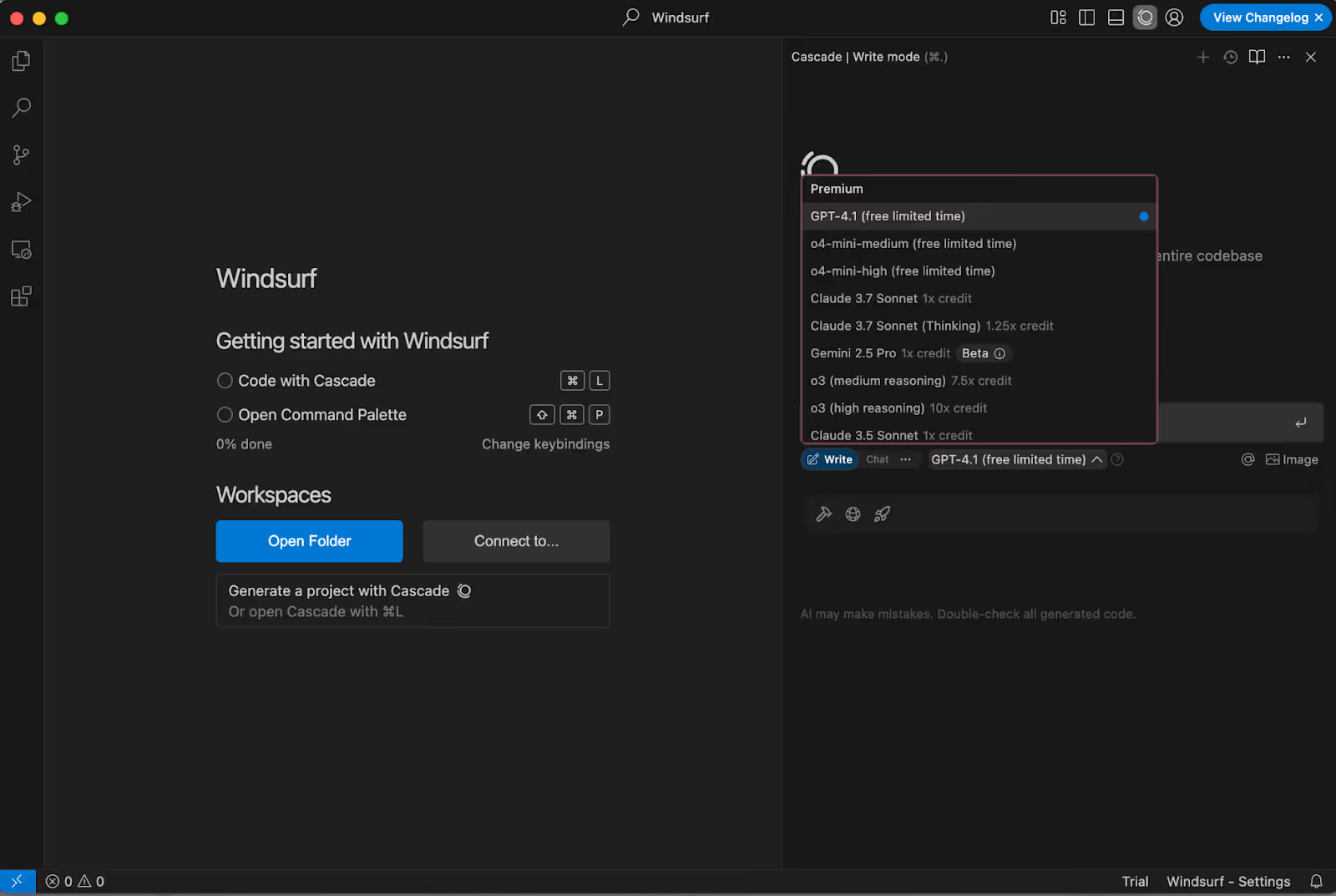
On the right side of the Windsurf interface, you’ll find Cascade, your AI copilot. Cascade can tap into several powerful foundation models:

Windsurf Editor interface showing options to select different AI models for coding assistance, including ChatGPT, Claude, and Gemini.

Each of these models brings its own strengths, and you can choose which one to use based on your goals or the task complexity. 

Some models, like Sonnet 3.7 (Thinking), use internal reasoning steps before generating final output. You’ll see the model “think out loud,” iterating on your prompt in real time. These “thinking” models are more resource-intensive and slightly slower, but they’re better at solving complex problems. 

However, they can sometimes overcomplicate things or drift off-track. A helpful strategy is to use them for ideation and problem-solving, then switch to a faster, more direct model for implementation.

🧠 Is one model better than the others? Sometimes. But results are non-deterministic. The best way to find what works is to experiment with models and prompt variations.

Step 3: Give Windsurf the Right Context

Windsurf starts every session with a clean slate. This means it doesn’t remember anything you’ve said in past conversations.

Just like you would explain things to a new teammate, you’ll need to provide all the relevant information upfront before asking it to write code. For example:

If you're building a chatbot, you might begin by asking Windsurf to read a README file so it understands the system’s specs and expected behavior.

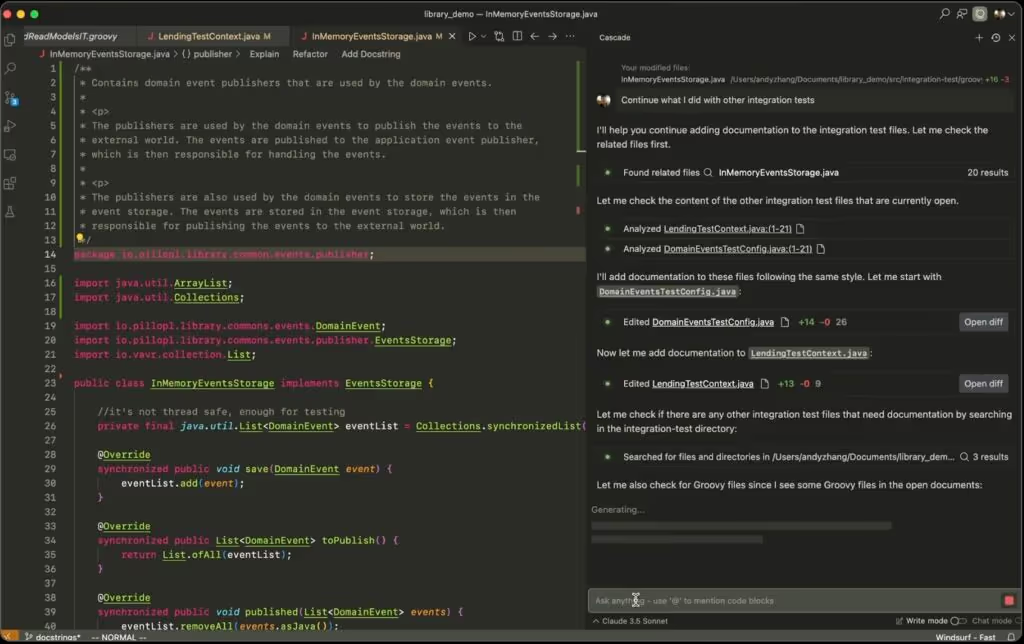
Context is everything. Without it, Windsurf can’t generate helpful code. Here’s how to provide the right context:

  • Upload or paste documentation (README, API references, etc.)
    • Pro tip, ask Windsurf to generate the README file and documentation in MD format, and then edit it accordingly
  • Use features like rules and memories to keep recurring information handy
Windsurf Editor user interface with the Cascade AI agent in the sidebar, illustrating how users provide context for AI-assisted coding tasks, in this case, continuing integration tests.

⚠️ Reminder: Windsurf doesn’t retain information between sessions unless you explicitly use memory or rule features. Be intentional and include all necessary context up front.

Want to go deeper? Check out our dedicated blog post on giving Windsurf proper context.

Step 4: Paste Your Prompt

Once you’ve set the context, paste your prompt into the same conversation thread. From here, Windsurf takes over, picking the right tools, building your code step by step, and shows you its thinking along the way. 

Before making any changes to the code, always present the plan and ask for confirmation.” That way, we can review it, and models don’t go ahead and make changes on their own. So that’s a rule we should always stick to.

You can ask for edits, improvements, or further explanations as you go.

Step 5: Run Your App on Localhost

One of Windsurf’s most powerful features is its ability to generate full-stack applications (frontend and backend) in just minutes. It can:

  • Configure your environment
  • Generate working code
  • Run it locally using the “One Shot” flow

One Shot = one solid prompt → full app prototype

This is fantastic for prototyping and fast iteration. But it’s not a replacement for good software engineering practices.

💡 Important: One Shot outputs aren’t production-ready. Always review the code. AI can take you far, but great software still needs great developers behind it.

Step 6: Make Changes & Refine

Windsurf extends beyond the chat interface by offering intelligent autocompletion within the code editor, providing contextually relevant suggestions as you type.

Plus, there's this cool shortcut: Command + L. By selecting a portion of code and using this command, you can then enter instructions such as "comment this function," and Windsurf will propose the corresponding modification.

For every change Windsurf suggests, a little window will show up where you can check out the proposed code edits and either click "Accept" or "Decline".

Now, here's the deal: If you don't like what Windsurf makes and you just keep telling it to change stuff over and over, it can start adding a bunch of extra, messy code. It will keep adding new styles without getting rid of the old ones. It can get into this weird loop where it just keeps piling on code, and you won't even know what's being used and what's just junk.

Think about it this way: when you come back to your project tomorrow, Windsurf won't remember any of your previous chats. So, it'll use its search tool, find some old style that's not even being used, and try to change that instead. Then, nothing works, and you're wondering what's going on.

Remember, Windsurf's memory is short. It's like saying "hi" and having to introduce yourself again the next time. That's why writing clean, organized code makes it way easier for Windsurf's search tools to do their job right.

So, one of the best ways to handle this is to go back a step. You can literally tell Windsurf, "Forget that," using the "truncate conversation" feature. It's pretty sweet because you can hit "Revert this step," confirm it, and Windsurf will not only forget what it just did but also undo the code changes.

Bottom line: It's usually better to tweak your original prompt and go back than to keep asking Windsurf to fix something you didn't like in the first place. 

Wrap Up

Start small. Test different models. And most importantly, don’t skip the human touch. Even with powerful AI, great software still depends on great developers.

👉 Next up: We'll walk through the best ways to give Windsurf context so you can get even more of its potential.

If you're curious about where AI is headed in software development, it's time to pay attention to Windsurf: an IDE powered by artificial intelligence that feels less like a tool and more like a copilot.

In our previous blog post, we went over the basics of what’s Windsurf and how it works. Now, let’s walk through a simple, step-by-step guide to help you get started.

Step 1: Plan Your Project

Before you jump into coding, take a step back and plan. This is where ChatGPT (or another conversational model) can shine. Use it to brainstorm ideas, organize your thoughts, and shape your prompt.

Let’s say you want to build a chatbot. You can ask ChatGPT to help you structure a well-defined prompt tailored for Windsurf.

🔍 Pro tip: The more complex or abstract your prompt is, the higher the chance of messy or overly generic code. If long-term maintainability matters, spend time writing a thoughtful prompt.

Step 2: Choose the Right Model

On the right side of the Windsurf interface, you’ll find Cascade, your AI copilot. Cascade can tap into several powerful foundation models:

Windsurf Editor interface showing options to select different AI models for coding assistance, including ChatGPT, Claude, and Gemini.

Each of these models brings its own strengths, and you can choose which one to use based on your goals or the task complexity. 

Some models, like Sonnet 3.7 (Thinking), use internal reasoning steps before generating final output. You’ll see the model “think out loud,” iterating on your prompt in real time. These “thinking” models are more resource-intensive and slightly slower, but they’re better at solving complex problems. 

However, they can sometimes overcomplicate things or drift off-track. A helpful strategy is to use them for ideation and problem-solving, then switch to a faster, more direct model for implementation.

🧠 Is one model better than the others? Sometimes. But results are non-deterministic. The best way to find what works is to experiment with models and prompt variations.

Step 3: Give Windsurf the Right Context

Windsurf starts every session with a clean slate. This means it doesn’t remember anything you’ve said in past conversations.

Just like you would explain things to a new teammate, you’ll need to provide all the relevant information upfront before asking it to write code. For example:

If you're building a chatbot, you might begin by asking Windsurf to read a README file so it understands the system’s specs and expected behavior.

Context is everything. Without it, Windsurf can’t generate helpful code. Here’s how to provide the right context:

  • Upload or paste documentation (README, API references, etc.)
    • Pro tip, ask Windsurf to generate the README file and documentation in MD format, and then edit it accordingly
  • Use features like rules and memories to keep recurring information handy
Windsurf Editor user interface with the Cascade AI agent in the sidebar, illustrating how users provide context for AI-assisted coding tasks, in this case, continuing integration tests.

⚠️ Reminder: Windsurf doesn’t retain information between sessions unless you explicitly use memory or rule features. Be intentional and include all necessary context up front.

Want to go deeper? Check out our dedicated blog post on giving Windsurf proper context.

Step 4: Paste Your Prompt

Once you’ve set the context, paste your prompt into the same conversation thread. From here, Windsurf takes over, picking the right tools, building your code step by step, and shows you its thinking along the way. 

Before making any changes to the code, always present the plan and ask for confirmation.” That way, we can review it, and models don’t go ahead and make changes on their own. So that’s a rule we should always stick to.

You can ask for edits, improvements, or further explanations as you go.

Step 5: Run Your App on Localhost

One of Windsurf’s most powerful features is its ability to generate full-stack applications (frontend and backend) in just minutes. It can:

  • Configure your environment
  • Generate working code
  • Run it locally using the “One Shot” flow

One Shot = one solid prompt → full app prototype

This is fantastic for prototyping and fast iteration. But it’s not a replacement for good software engineering practices.

💡 Important: One Shot outputs aren’t production-ready. Always review the code. AI can take you far, but great software still needs great developers behind it.

Step 6: Make Changes & Refine

Windsurf extends beyond the chat interface by offering intelligent autocompletion within the code editor, providing contextually relevant suggestions as you type.

Plus, there's this cool shortcut: Command + L. By selecting a portion of code and using this command, you can then enter instructions such as "comment this function," and Windsurf will propose the corresponding modification.

For every change Windsurf suggests, a little window will show up where you can check out the proposed code edits and either click "Accept" or "Decline".

Now, here's the deal: If you don't like what Windsurf makes and you just keep telling it to change stuff over and over, it can start adding a bunch of extra, messy code. It will keep adding new styles without getting rid of the old ones. It can get into this weird loop where it just keeps piling on code, and you won't even know what's being used and what's just junk.

Think about it this way: when you come back to your project tomorrow, Windsurf won't remember any of your previous chats. So, it'll use its search tool, find some old style that's not even being used, and try to change that instead. Then, nothing works, and you're wondering what's going on.

Remember, Windsurf's memory is short. It's like saying "hi" and having to introduce yourself again the next time. That's why writing clean, organized code makes it way easier for Windsurf's search tools to do their job right.

So, one of the best ways to handle this is to go back a step. You can literally tell Windsurf, "Forget that," using the "truncate conversation" feature. It's pretty sweet because you can hit "Revert this step," confirm it, and Windsurf will not only forget what it just did but also undo the code changes.

Bottom line: It's usually better to tweak your original prompt and go back than to keep asking Windsurf to fix something you didn't like in the first place. 

Wrap Up

Start small. Test different models. And most importantly, don’t skip the human touch. Even with powerful AI, great software still depends on great developers.

👉 Next up: We'll walk through the best ways to give Windsurf context so you can get even more of its potential.

Related Articles

·

May 27, 2026

What AI Can and Can’t Replace in Design Systems

What happens when you build a design system from v0, Figma, and Windsurf, and let AI handle the speed while you keep the judgment.

12 read time

Read more

Just this month, I built a full design system in about 20 hours.

What used to take weeks, sometimes months, is now dramatically faster. So… what actually changed? And more importantly: what didn’t?

Design systems take time. On complex platforms, they can take hundreds of hours.

We were working with a large and complex product where inconsistencies had started to pile up. Different modules had evolved in isolation, teams were making independent decisions, and there were no shared guidelines. The answer was clear: we needed a design system.

AI tools were just starting to emerge back then. They were mostly useful for simple tasks as they tended to hallucinate when things got complex. Developers had started using them earlier than designers, MCP didn't exist yet, and Figma plugins were the best automation we had.

But the context has changed. Fast.

The Manual Era

We did what most teams did. We stopped, and we built it. Manually.

Picture two designers, a mountain of inconsistencies, and no map. We had to cross-reference information manually, digging through the code, detecting what could be merged, agreeing on naming conventions, deciding how to name components. Hours and hours of discussion until we finally landed on a solution.

In the end, we got there. A cleaner system, faster workflows, and for the first time, both teams speaking the same visual language. Hard-won, but it worked.

But now every month a new AI model seems to be released. Design is finally catching up with what developers faced about two years ago. New tools arose, and with that, the scope of our work as designers completely changed.

The Human Factor

For an internal project, I used our Kaizen site as a reference, combined with documentation from industry leaders as a guideline.

I started in v0, which is essentially a chat interface where you can generate UI components through prompts. I fed it the colors, typographies, and a reference image, and from there it was a back-and-forth: the AI generated, I reacted, adjusted, and pushed until the output matched what I had in my head. And just like that, I started prompting my way through a Design System.

Once a component was ready, I used the html.to.design plugin to bring it into Figma (yes, plugins are still alive!). Think of it as a bridge: the plugin exports designs directly from the browser into a Figma file.

Inside Figma, the intervention was more hands-on. First, I checked that everything was visually consistent with what was defined in v0: colors, typography, styles. Then I used Figma's built-in AI to rename all the component layers using BEM convention (something that would have taken a significant amount of time to do so manually).

BEM, which stands for Block Element Modifier, is a widely adopted naming convention in CSS. It structures layer names hierarchically and predictably, for example: button__label--disabled.

Using it keeps the code clean, readable, and consistent, especially when you're working alongside a developer who needs to understand what came out the other side.

Beyond naming, I also made sure the layer structure would generate the right properties when building component sets in Figma, so that all the variants would be correctly exposed and usable. My team also pointed out that adding descriptions to components and variants was key as context for any agent using them through an MCP.

The last step was connecting everything to Windsurf via MCP. With a frame selected in Dev Mode, Windsurf could read the Figma file and use the components to build more complex screens.

We worked closely with a developer throughout this phase. Not just for the technical knowledge, but because having someone who reads code fluently meant catching things we wouldn't have spotted otherwise. The design role here was direction and supervision: making sure the AI used the components correctly and didn't invent solutions where context was missing.

Every step of the process had a human decision behind it.

AI-assisted UI design workflow showing v0 component generation, html.to.design export to Figma, BEM layer organization, and Windsurf MCP development handoff.

An Unexpected Discovery

At one point, before we had any of the naming conventions figured out, I selected a frame and asked Windsurf to build a form using the components inside it, styled to match a specific card. The developer next to me was skeptical until he saw the result, and then he was just as surprised as I was.

What we realized is that the MCP wasn't reading layer names to understand context. It was reading everything inside the frame, even the loose text sitting alongside the components. Good naming is still worth doing. But the MCP doesn't need it to understand what it's looking at.

UI component library preview with cards, testimonials, service blocks, statistics, and a contact form for a modern software development website.

Learning to Talk to an AI

The more specific and contained your prompt, the better the outcome. We started with the most atomic component: the button, and worked outward from there. Each approved component became context for the next one, so the system gradually picked up the visual language we were building.

At some point I got ambitious and asked for five cards in a single prompt: blog card, service card, testimonial card, stats card, feature card… structures, states and all. The AI delivered.

Visually, everything looked fine. Then the developer looked at the code and pointed out that all five cards were independent components instead of variants of one. For a design system, that breaks everything.

One correction prompt fixed it. But it was a good reminder: the AI does exactly what you ask, not what you mean. And fixing it after the fact can cost more than getting it right from the start.

Some Things Learned Along the Way

  • Precision is key. Natural language is fine when you're asking for a cooking recipe, but when referring to a component, if you say things like "create" instead of "add", you'll probably end up with a whole new set of components instead of additional variants of an existing one.
  • The "Frame" is the context: MCPs can read everything inside the frame you select. This is a game-changer. It means the "naming conventions" debate might be shifting. If the AI understands the context visually and structurally, will we still spend hours discussing nomenclature in 2027?
  • No matter what happens, you can always roll back in less than 5 minutes and start over.
  • Work closely with a developer: they can help you understand MCPs and clear up any code-related doubts. Once you start to grasp their logic, you'll learn very quickly how to prompt in ways that AI actually understands.
  • There's nothing to lose by asking the AI to follow a specific naming convention for the code. It keeps everything clean and readable, and it takes no extra effort.
  • The AI covers roughly 80% of the work (generation, variations, exploration...), but the remaining 20% is where quality lives, and that part is not delegable. The AI executes. The judgment is still yours. And if you skip the review, you're not saving time: you'll spend it later.
  • Context matters more than tooling. What you don't define, the AI will invent. Small components may be resolved well, but large interfaces require more definition from the start. A well-defined system scales. An undefined one generates inconsistencies faster than you can fix them.
  • Figma is no longer the mandatory starting point. It's useful as a visual reference, a QA space, or a consolidation layer. But the AI doesn't need it. We still do.
  • There's no single right workflow yet. What you do depends on the project. We're in a transition moment where the tools change faster than the standards. The best thing you can do right now is experiment.

What AI Still Can’t Replace

Through all of this, a few things became very clear. These are the parts that didn’t change:

  • Knowing when something looks off. The AI generates, but it doesn't notice when the result doesn't feel right. That eye is yours.
  • Direction and supervision. The AI used the components we gave it, but without someone supervising it, it invents solutions where there is no context to work from.
  • The definition of done is still a human call, whether it's a conversation with a PO, a stakeholder, or just the designer's criteria. There's no prompt for that.
  • The context: knowing why certain decisions matter, what a component should communicate, what the user will actually feel. Business knowledge, stakeholder dynamics, unwritten rules, empathy for the end user. These take years to build and live in the people doing the work, not in the tools they use.

My Two Cents

The tools changed, and that gave me the chills, but throughout this experience I found that the designer's role is more alive than ever.

What once took a team weeks can now be prototyped in hours. That’s not a threat; it’s an invitation to get curious.

I'm still figuring a lot of this out, and I suspect most of us are. There's no right workflow yet, and honestly, that's fine. We are in a transition where tools change faster than standards. The best thing you can do is experiment. Don't wait for a "definitive" workflow, it might be obsolete by next month.

Go ahead, try prompting your way through a component. You might be surprised how fast the system starts to take shape.

·

May 15, 2026

Can AI Safely Apply Changes Across Microservices?

AI can update microservices safely, but only when it understands the system’s architecture, ownership, and service relationships.

12 read time

Read more

Applying changes across microservices is difficult because business logic is distributed across multiple services, each with its own data, contracts, and responsibilities.

In our experiment at Kaizen Softworks, we tested whether an AI system could safely apply coordinated changes across a microservices architecture using only minimal input.

Short answer: Yes, but only when the AI has enough architectural context.

Why are coordinated changes in microservices so hard?

In distributed systems, a single business change rarely affects just one service.

It often requires:

  • Updating multiple microservices
  • Modifying message contracts
  • Keeping DTOs (Data Transfer Objects) consistent
  • Respecting domain boundaries defined by Domain-Driven Design (DDD)

Key entities in this system:

  • Microservice: An independently deployable service responsible for a specific domain
  • Aggregate (DDD): A cluster of domain objects treated as a single unit
  • DTO (Data Transfer Object): A structured format used to transfer data between services
  • Message/Event: A communication mechanism between services

The complexity is not in the code, it’s in the relationships between components.

The experiment: Can AI reason across services with minimal input?

We designed a controlled experiment to test whether an AI model could apply system-wide changes with limited information.

Input given to the AI:

  • Message definitions (events between services)
  • DTOs (data contracts)

Tasks the AI had to perform:

  1. Identify affected aggregates
  2. Determine service ownership
  3. Apply coordinated changes across services
  4. Maintain consistency in messages and DTOs

In other words, the AI had to behave like a software architect, not just a code generator.

What was the biggest obstacle?

The biggest challenge was not technical, it was contextual.

Before and after diagram showing how ambiguous microservice names prevent AI from understanding service ownership, while aggregate-to-service mapping helps AI apply safe coordinated changes.

Problem: unclear service naming

Instead of descriptive names like:

  • order-service
  • billing-service

Our services were named:

  • john
  • sally
  • roger

This removed any semantic clues about responsibility.

Result: The AI could not infer which service owned which domain logic.

The missing piece: aggregate ownership mapping

To solve this, we introduced a simple but powerful structure:

Aggregate → Service mapping

  • Order → john
  • Shipment → sally
  • Invoice → roger

This created a clear relationship between domain concepts and system components.

Once ownership was explicit, the architecture became understandable.

How we used AI to generate architectural context

Instead of building this mapping manually, we used AI to analyze the codebase and extract:

  • Where each aggregate was defined
  • Which microservice implemented it
  • The relationship between domain and infrastructure

The result was a machine-readable architecture map.

In practice, we used AI to generate the context that AI itself needed.

Results: Can AI safely apply distributed changes?

With the architecture map in place, the AI was able to:

  • Trace message flows across services
  • Identify affected aggregates
  • Locate the correct microservices
  • Apply coordinated updates
  • Maintain consistency between DTOs and messages

While not perfect, the system worked reliably as a proof of concept.

What is the real limitation of AI in microservices?

The main limitation of AI is not code generation, it’s architectural understanding.

Without knowing:

  • Which components exist
  • How they relate
  • Who owns what

AI cannot safely modify a distributed system.

AI performance depends more on context quality than model capability.

When can AI safely modify microservices?

AI works well when:

  • Aggregate ownership is clearly defined
  • Message contracts are explicit
  • Architecture is structured and consistent

AI struggles when:

  • Naming is ambiguous
  • Relationships are implicit
  • Context is incomplete

Simple rule: If the architecture is clear, AI can reason. If not, it guesses.

Final thoughts

This experiment revealed something important:

AI doesn’t fail because it can’t write code.
It fails because it can’t see the system.

As teams move toward AI-assisted development, the focus will likely shift from:

Writing better code to Designing better systems for machines to understand

At Kaizen Softworks, we see this as a foundational shift.

Because when AI can understand architecture, it doesn’t just generate code, it helps evolve systems.